
Linux Tutorial: Essential Linux Commands

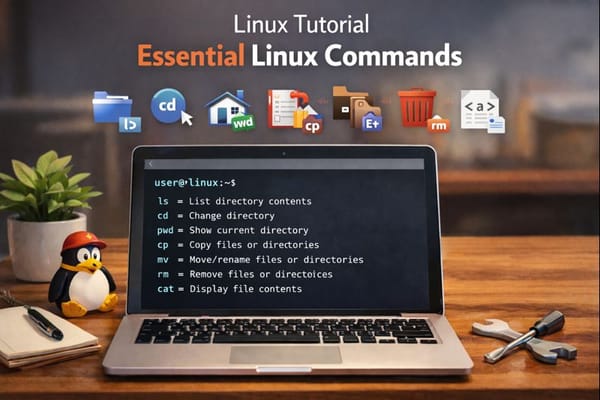
A comprehensive guide to the most important Linux commands.
File & Directory Navigation
cd - Change Directory
Navigate between directories in your filesystem.
cd /home/user/documents    # Go to specific path
cd ..                      # Go up one level
cd ~                       # Go to home directory
ls - List Directory Contents
Display files and folders in the current directory.
ls                # Basic listing
ls -la            # Detailed listing with hidden files
ls -lh            # Human-readable file sizes
pwd - Print Working Directory
Show the current directory path you're in.
pwd # Displays: /home/user/documents
File Operations
mkdir - Make Directory
Create new directories/folders.
mkdir newfolder              # Create single directory
mkdir -p path/to/nested/dir  # Create nested directories
touch - Create Empty File
Create new empty files or update timestamps.
touch newfile.txt
touch file1.txt file2.txt file3.txt
cp - Copy Files/Directories
Copy files and directories from one location to another.
cp source.txt destination.txt     # Copy file
cp -r folder1/ folder2/           # Copy directory recursively
mv - Move/Rename Files
Move or rename files and directories.
mv oldname.txt newname.txt        # Rename
mv file.txt /path/to/destination/ # Move
rm - Remove Files/Directories
Delete files and directories permanently.
rm file.txt              # Remove file
rm -r folder/            # Remove directory recursively
rm -rf folder/           # Force remove (use carefully!)
File Viewing & Editing
cat - Concatenate and Display Files
Display entire file contents in the terminal.
cat file.txt
cat file1.txt file2.txt    # Display multiple files
less - View File with Pagination
View large files with scrolling capability.
less largefile.log # Use arrow keys, 'q' to quit
head - View First Lines
Display the first 10 lines of a file.
head file.txt
head -n 20 file.txt    # Show first 20 lines
tail - View Last Lines
Display the last 10 lines of a file.
tail file.txt
tail -f application.log    # Follow live updates
nano - Simple Text Editor
Easy-to-use terminal text editor.
nano file.txt # Edit file (Ctrl+X to exit)
Search & Find
grep - Search Text Patterns
Search for specific patterns within files.
grep "error" logfile.txt           # Find "error" in file
grep -r "TODO" .                   # Search recursively in directory
grep -i "warning" file.txt         # Case-insensitive search
find - Search for Files/Directories
Locate files and directories by name or properties.
find . -name "*.txt"              # Find all .txt files
find /home -type d -name "backup" # Find directories named "backup"
System Information
df - Disk Space Usage
Display available disk space on filesystems.
df -h # Human-readable format
du - Directory Size
Show disk usage of files and directories.
du -sh folder/    # Summary of folder size
du -h --max-depth=1    # Size of subdirectories
top - Process Monitor
Display running processes and system resource usage.
top # Press 'q' to quit
ps - Process Status
Show currently running processes.
ps aux              # All processes with details
ps aux | grep nginx # Find specific process
Permissions & Ownership
chmod - Change File Permissions
Modify file/directory access permissions.
chmod 755 script.sh    # rwxr-xr-x
chmod +x script.sh     # Make executable
chown - Change Ownership
Change file/directory owner and group.
sudo chown user:group file.txt
sudo chown -R user:group folder/
Network & Connectivity
ping - Test Network Connectivity
Check if a host is reachable.
ping google.com
ping -c 4 192.168.1.1    # Send 4 packets
curl - Transfer Data from URLs
Download files or interact with web services.
curl https://example.com
curl -O https://example.com/file.zip    # Download file
wget - Download Files
Download files from the internet.
wget https://example.com/file.zip
wget -c https://example.com/largefile.iso    # Resume download
System Administration
sudo - Execute as Superuser
Run commands with administrative privileges.
sudo apt update
sudo systemctl restart nginx
apt / yum - Package Manager
Install, update, and remove software packages.
sudo apt update              # Update package list (Debian/Ubuntu)
sudo apt install package     # Install package
sudo yum install package     # Install package (RHEL/CentOS)
systemctl - Service Management
Control system services (start, stop, restart).
sudo systemctl start nginx
sudo systemctl status apache2
sudo systemctl enable docker    # Enable on boot
tar - Archive Files
Compress and extract archive files.
tar -czvf archive.tar.gz folder/    # Create compressed archive
tar -xzvf archive.tar.gz            # Extract archive
ssh - Secure Shell
Connect to remote servers securely.
ssh user@192.168.1.100
ssh -i keyfile.pem user@server.com
history - Command History
View previously executed commands.
history           # Show all commands
history | grep cd # Search command history
Pro Tips
- Use Tab key for auto-completion
- Use Ctrl + C to cancel running commands
- Use Ctrl + R to search command history
- Add
--helpor-hto any command for usage info - Use
man commandto read detailed manual pages
![[Explained] How to Add Custom Domain to AWS "CloudFront" with SSL Enabled](/content/images/size/w300/2024/03/_72e1e43b-2175-4074-9b5e-d9b8dfbd1f46.jpeg)